TIM B’S TECH TALK
  • Home
  • Mac
  • iPad
  • Phone
  • Blog

Video Toolbox

Picture
Video Toolbox is an all-in-one toolkit for the Mac that enables you to manage the information associated with your video, along with a variety of other functions. For example, VideoToolbox lets you trim, flip, rotate, and control the speed of video clips, create video thumbnails and export files in multiple formats. To learn more read our detailed review.
Picture

Media Information

Picture
Picture
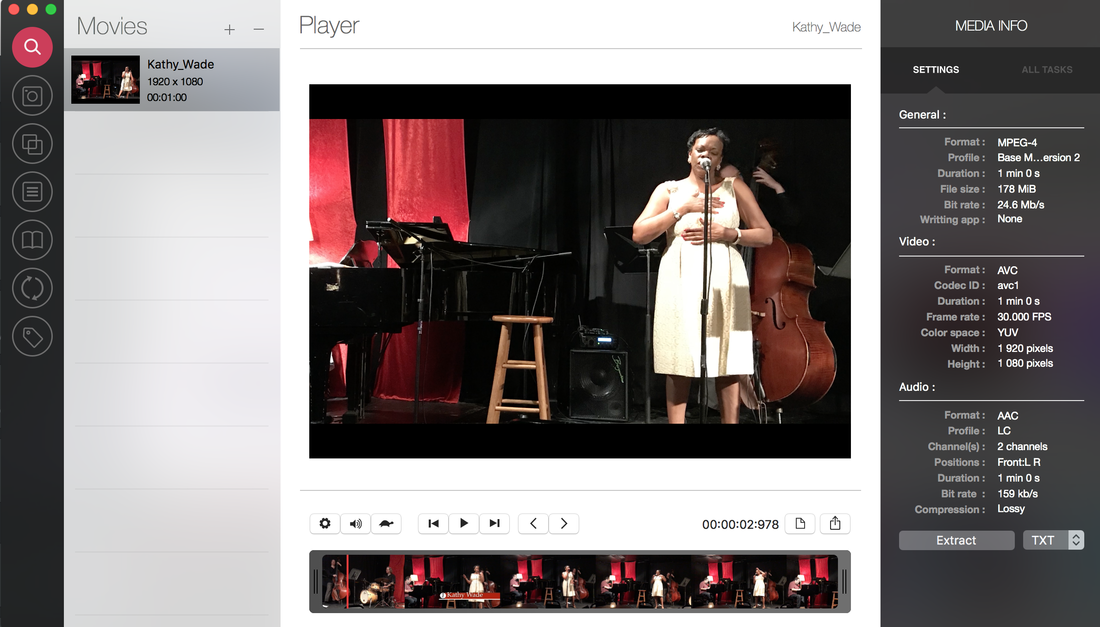
Under "Media Information" is a basic information about your video file. In the general section, you will see file format, profile, duration, file size, and bit rate. Under "video," you find additional information such as the width and height in pixels, the frame rate, and color space. The audio section includes information that is specific to sound such as format (e.g. AAC), profile, channels, and compression. This section is not used to update information, but you can export it in several file formats, including txt, rtf, xml, plist, and json.

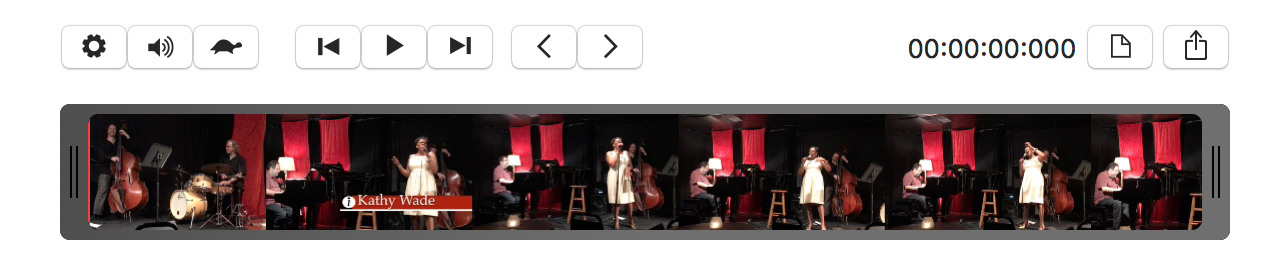
At the bottom, you will see a timeline of your video footage with a small menu of controls above. The controls enable you to flip the video horizontally or vertically and rotate the video left or right. The speed of the video can also be controlled and the sliders on each side can be used to trim the video to your desired length.

Snaps

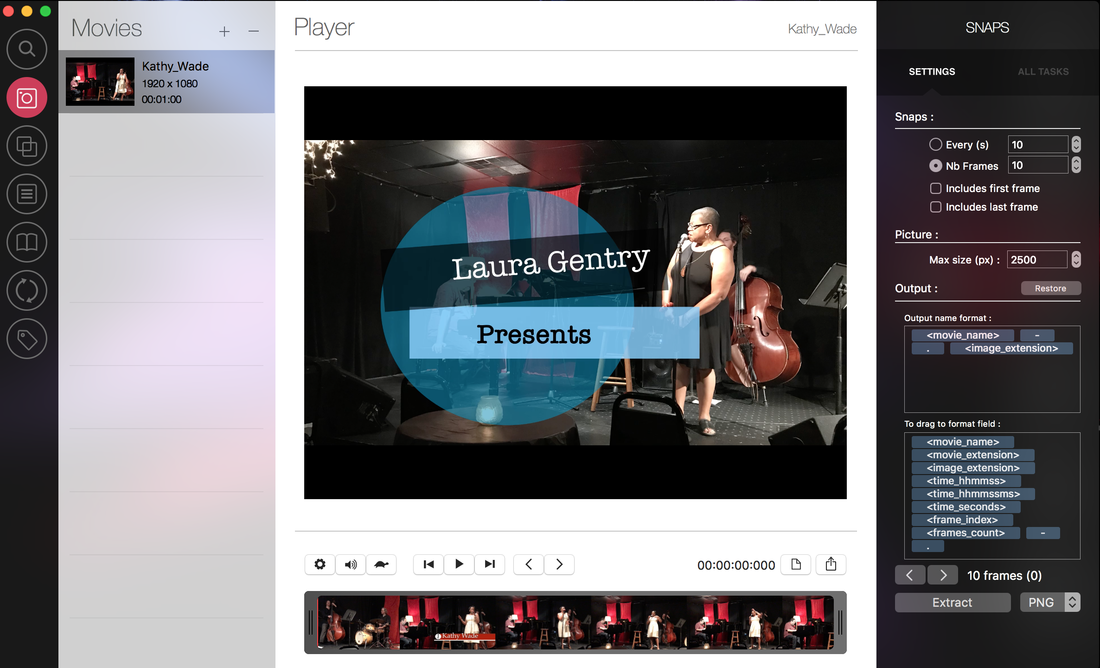
Beneath the general information tab is "Snaps." Short for snapshot, you can capture a sequence of images by seconds or by the number of frames. You have the option to include the first and last frames in this sequencing. Below, you can decide on the maximize size of your pictures, and choose the appropriate nomenclature for your output. The number of total frames will be displayed below, along with an option to choose png, jpg, or tiff formats for exporting your images.

Timelapse

Timelapse videos are a logical next step from snaps. Here you can export your video with the same option of sequencing them by seconds or frames​, including first and last frames, and customizing the size, and interval rate. The latter determines the how fast or slow you want the video to be; lower numbers speed up the sequence (e.g. 0.15) while higher numbers (e.g. 0.8) create a slower progression.

Thumbnails

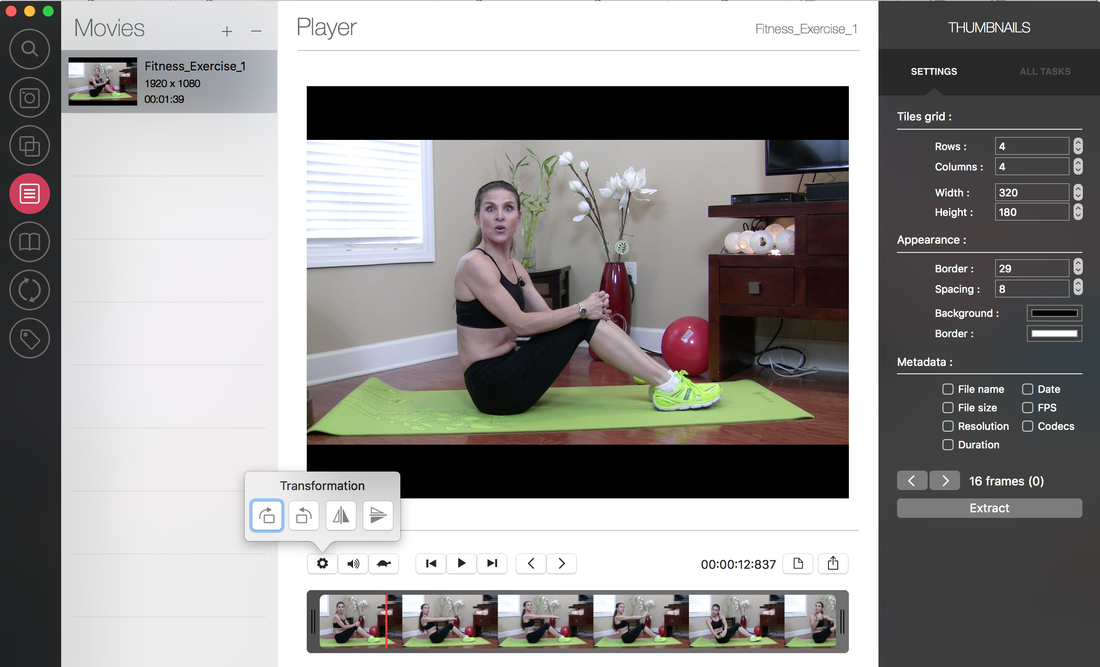
Contrary to snaps which appear as individual files pulled from the video, the thumbnail section creates what is equivalent to a contact sheet for displaying multiple thumbnails together on a single sheet. The grid tiles can be customized by designating the height and width and the number of rows or columns to be displayed. The appearance of the grid can be determined by the size of the border, the spacing in between each thumbnail, as well as the choice of background and border colors. There is an option to include metadata in your thumbnail sheet which can include the file name, size, resolution, duration, date, frames per second, and codecs.

Flipbook

Similar to Thumbnails, Flipbook enables you to take snaps every prescribed second or frame rate (first and last frames optional) while customizing the layout by designating how many rows or columns you want to use and what size you want to make the x and y margins. In contrast to the thumbnail option, the flipbook places numbers by each image and includes additional framing options for binding and position of the images. Contrary to the thumbnail option, the final product comes in a pdf format.

Export

A handy video toolbox is not complete without the ability to export videos in a range of formats. Under the preset tab, export options include HEVC or high efficiency video suppression, which doubles the compression without losing quality; low, medium, and high quality settings; aspect ratios ranging from 480p to 2160p, SD and HD formatting; and specific exports for Wi-Fi, AppleTV, cellular, iPod, and ProRes 422. The file types include m4v and mp4.
Picture
Picture

Metadata

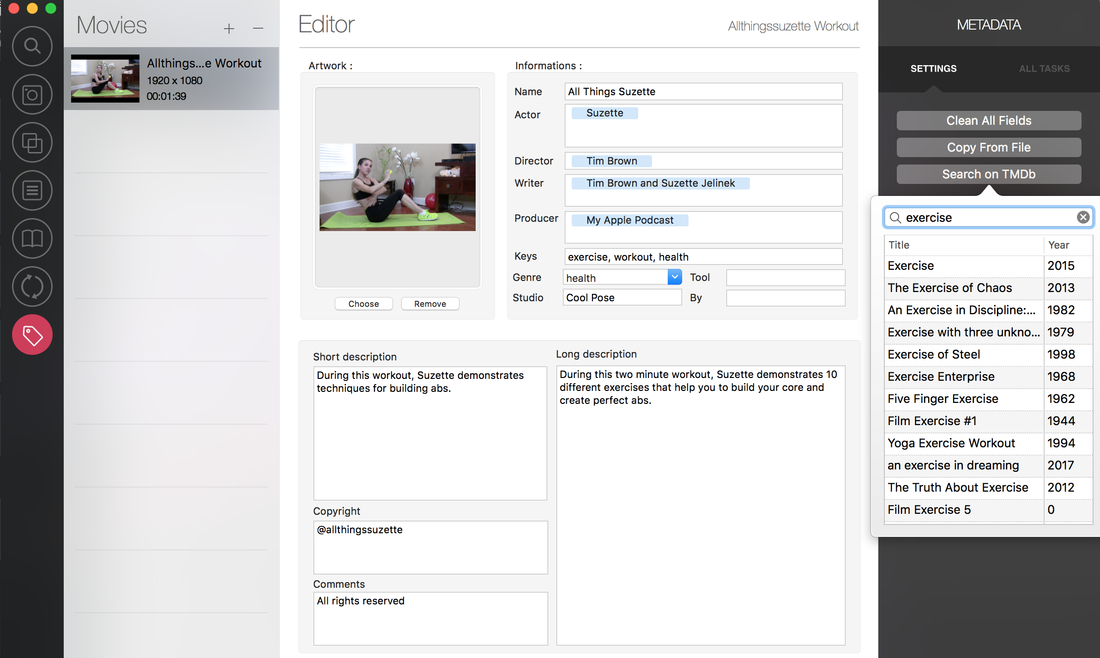
The last tool in the box is Metadata. Arguably the best feature, the metadata section includes form fields for adding a short description, long description, copyright information, and comments; name, actor, director, writer, producer, keys, genre, and studio. Adjacent to the right is a menu for importing data, including copying the data from an existing file or searching the TMDb data base for composite data matching your criteria. The option to copy data from an existing file can be very useful when creating videos that are part of a series because it eliminates the need to add the data manually fo reach file. The coolest feature in the metadata section is the ability to customize thumbnails, enabling you to selectively choose the scene in your video you would like to be displayed, while creating an image reference that is edge-to-edge for a clean, professional appearance.

Summary

VideoToolbox comes with helpful tools for accessing and exporting media information, creating snaps, timelapse videos, thumbnails, and flipbooks, and exporting files in a variety of formats. The ability to add comprehensive metadata makes it easier for websites to discovery your content. VideoToolbox is available in the Mac App Store. To learn more check out our YouTube tutorial.
Proudly powered by Weebly
  • Home
  • Mac
  • iPad
  • Phone
  • Blog